A switch rarely fails because of the new software. It fails because nobody knows what comes along, and so everyone wants to retype everything. You do not have to: customers and prices come across as a file, and the document numbers carry on where they left off. Allow an afternoon.
The order below is deliberate — each step needs the one before it.
1. In the old program: download three things
| What | Which file | What for in Zirko |
|---|---|---|
| Customers | CSV or vCard (.vcf) | Import customers |
| Services and materials | Excel (.xlsx) or CSV | Import into Master data |
| Issued invoices | PDF, ideally all of them | stay with you in your archive — not in Zirko |
On top of that, the last invoice number issued and the last quote number. Write them down; you need them in step 4.
Datanorm catalogs from your wholesaler are not downloaded from the old program — get them fresh from the wholesaler instead, so the prices are current.
Where the export sits in common programs
Checked on 28 September 2026 in the vendors' own help pages. Menus change; if you cannot find the item, search the old program for “Export”.
| Program | Exporting customers |
|---|---|
| plancraft | Kontakte → icon next to “Neuer Kontakt” → “Kontakte exportieren” (CSV) |
| ToolTime | “Datenexport” → “Kundendaten” — only with the owner role |
| Craftnote | Kunden → “Exportieren” (CSV) — according to the vendor from the Büro Plus package, owner role |
| Jobber | “Clients” → “More Actions” → “Export Clients” (CSV or vCard) |
| Tradify | “Customers” → “Options” → “Export Customers to File” |
Contacts from Google, Outlook or the iPhone work the same way: the import dialog in Zirko shows under How do I export my contacts? where the export is found there.
2. Importing customers
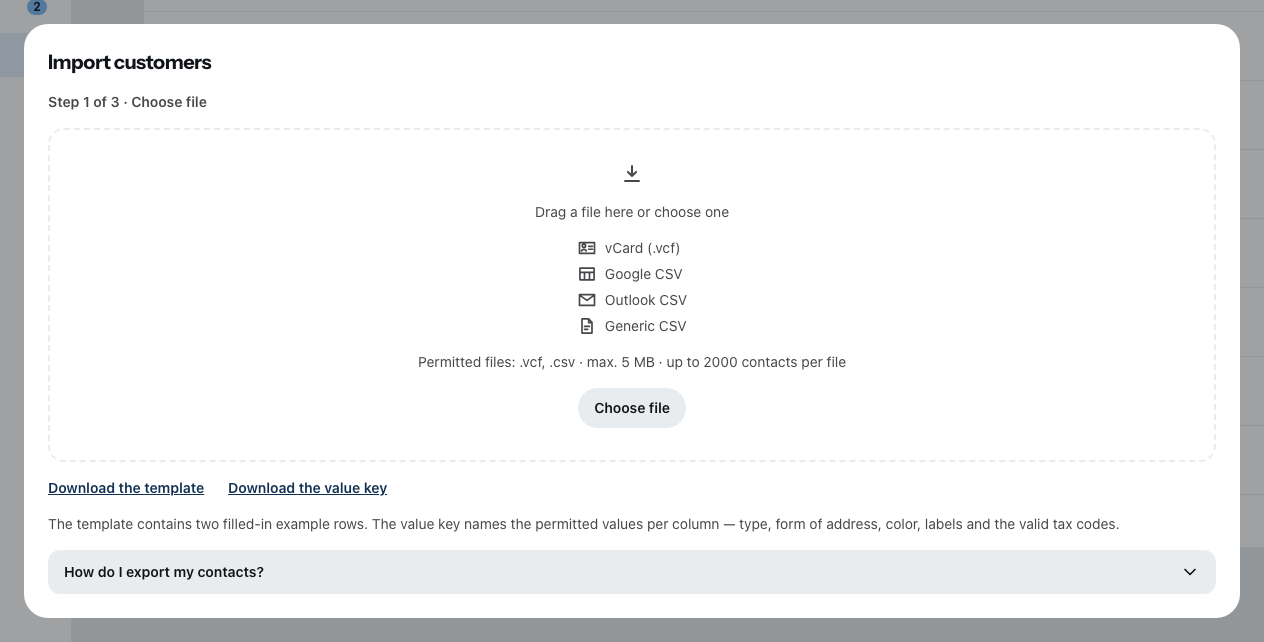
In the customer list, the Import customers icon, then four steps: Choose file, Map, Check & select, Import. A file may be up to 5 MB and hold up to 2,000 contacts.
- Under Map, Zirko's fields are on the left; on the right you choose the matching column of your file. Only the name or company is mandatory. Whatever you do not map, Zirko leaves out.
- Map the old customer number. Zirko takes it over as it is — your customers keep their number, and your bookkeeper finds them again.
- Under Check & select, every customer that already exists in Zirko is marked: Already exists: …. That way no duplicates are created.
If the other program's file is too messy, use Download the template, copy the columns into it and import the template. More under Creating a customer.
3. Bringing prices across
Master data → the Services or Materials tab → the import icon. Depending on the country, the entry for spreadsheets is called From an Excel / CSV file, in Germany, Switzerland and Luxembourg From a GAEB / Excel file, in Austria From an ÖNORM / GAEB / Excel file. You map the columns — the short text is mandatory —, choose the target folder and check. There is a Download the Excel template here too. Excel and CSV work in every package; GAEB, ÖNORM and Datanorm belong to the Team and Company packages.
If you have no price list in the old program but plenty of quotes: write one of them again in Zirko and take it in as a price list with From an existing document. See Creating services and materials.
4. Letting the numbers carry on
Settings → Accounting → Number ranges. For Invoices, set the Start value to the next number after your last one — and build the Format the way your numbers looked until now, for example RE-{yyyy}-{number}. The same for quotes and for Customers: there the start value belongs above the highest imported customer number.
An invoice number may exist only once — across two programs too. Zirko does not know the numbers from the old program. If you set the start value too low, a number is created a second time, and the first to notice is the tax authority. Better to leave a jump than to have a number twice.
How format and minimum length work: Setting up document numbers.
5. What stays in the old program
- Issued invoices. They cannot be imported into Zirko, and rightly so: an issued invoice must not be changed any more, and the record-keeping rules of your country require that you can show it unchanged for years. Keep the PDFs — and, if the old program has them, the e-invoice files — in good order before you cancel the old subscription.
- Unpaid invoices. Finish off payments and reminders for them in the old program. A second invoice in Zirko for the same work would be a double claim.
- Ongoing projects with interim invoices. Zirko cannot count interim invoices from another program into a final invoice. Settle such sites in the old program and start new ones in Zirko.
- Individual hours from the past. Times cannot be imported; in Zirko they begin with the first day. What you can bring along are the balances: under Time tracking → Edit balances you enter a correction to the Working time account for each person, and with Set remaining leave the leave that is left. Write down both figures in the old program before you cancel it. See Recording times in the office.
6. Bringing the team in
Last of all, once customers and prices are in place: Inviting employees. Anyone who gets a field role works with the Zirko app on their phone.
The first fourteen days are the trial — enough time to write a real job entirely in Zirko before you give up the old program. How that goes: Your first job.