A quote says what the work should cost. Once the customer agrees, it is binding.
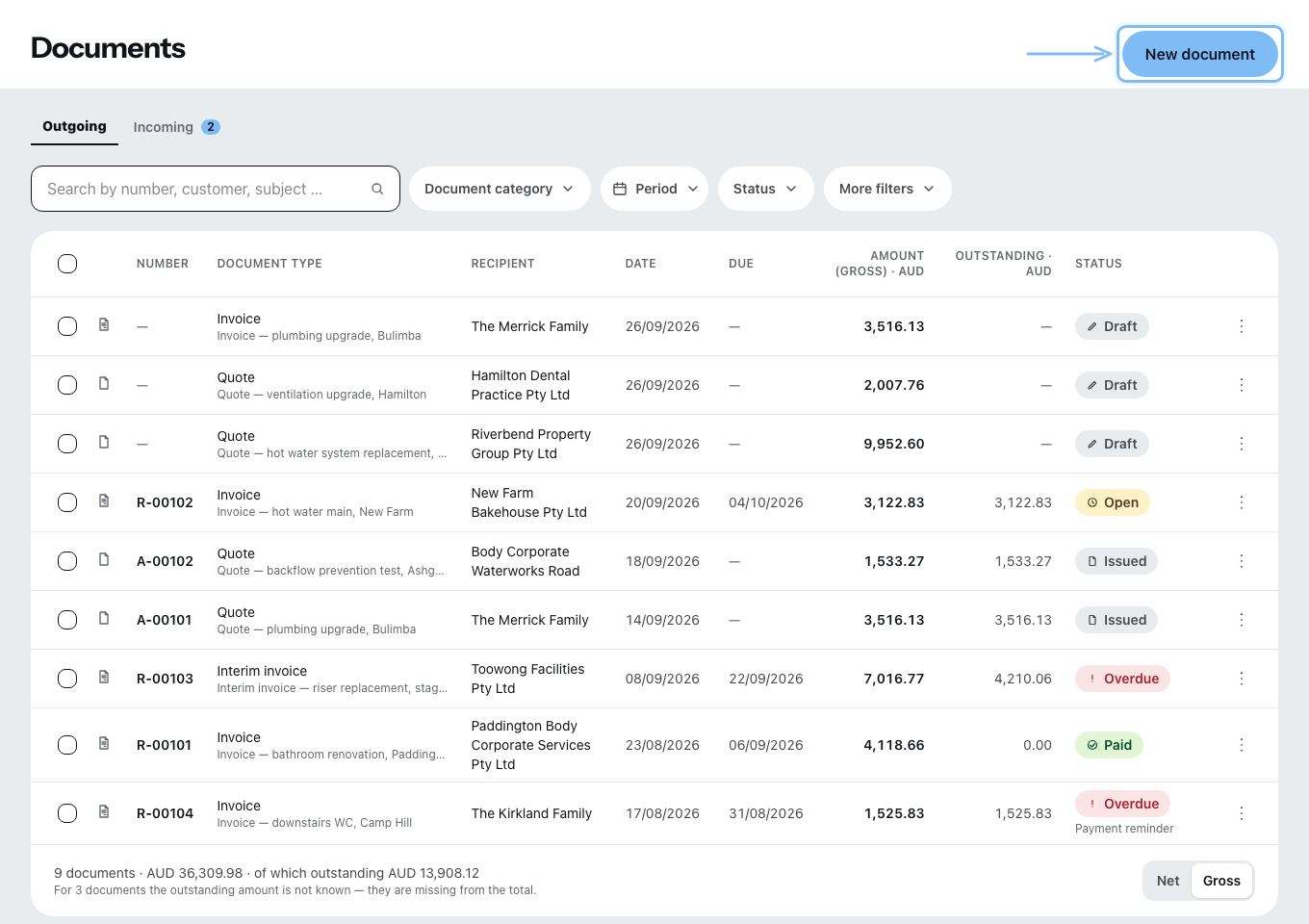
A document is always created inside a project
New document asks in two steps: first For which project?, then What should be created?. Recipient, place of work and subject come from the project — which is why it does not work without one. If there is no project yet, the dialog takes you to Projects.
You can create seven document types from scratch: quote, cost estimate, order confirmation, delivery note, invoice, interim invoice, letter. All the others arise from a preceding document.
The editor needs a wide screen — from 768 pixels. It does not work on a phone, and Zirko says so instead of showing an unusable surface.
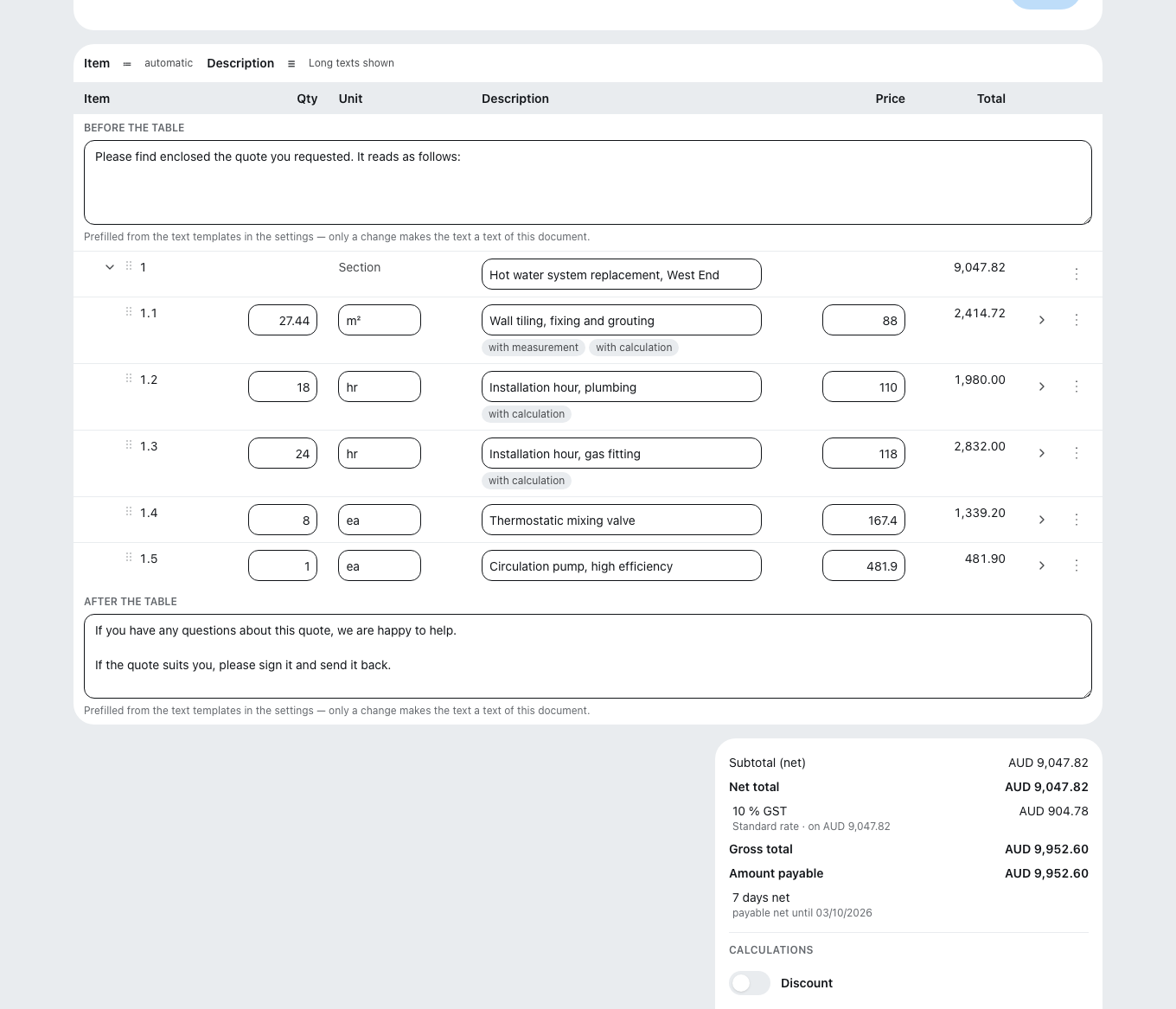
The structure from top to bottom
Header card (recipient, contact person, date, service period, subject, place of work) → text before the table → bill of quantities → totals section → text after the table.
“Contact person” here means the contact at the customer. Who at YOUR business can be reached about this document you choose separately, next to date and service period, under “Our contact person” — pre-filled with whoever creates the document, provided they have an office license. On the document, this person appears below the date, with phone and email from Settings → Templates & Layout → Letterhead.
There is no Save button. At the top it says “Saved”, “Saving …” or “Not saved” — that is the whole story. If the preview on the right cannot load right now, a note appears there with “Refresh preview” — the rest of the editor stays usable.
Inserting line items
The toolbar on the right holds four blocks: Text, Section, Item, Image. Click a block, then click the place in the document. The plus appends it at the bottom; dragging works too.
Per line item: short text, Show long text for the detailed description, Add image, Add measurement and Price calculation. Through the Search tab you pull in your master data. In the Total price calculation mode, the unit price follows a new quantity — whether you enter it directly or it comes from the measurement.
Measurement does the arithmetic for you: one description and one formula per row, such as 100+(5.1*4)/2, with the result beside it. The total becomes the quantity.
With Mark line item you make it Alternative, Optional or Optional (included). Items that are not included do not count toward the net total; in the PDF their price is in brackets.
A line item worth keeping goes into your price list through the ⋮ menu (Row actions) with Add to master data — from a finalized document too. The line item in the document stays as it is. How the dialog works is explained under Creating services and materials.
Own item numbers
The ≔ button above the table switches between sequential and own numbering. With own numbers, the Item column becomes a field at every line item and section: click into it, change it, Enter or clicking away saves it, Escape discards the change. Up to 20 characters.
A newly inserted, taken-over or duplicated row gets the next free number — between “1” and “2”, for example “1a”. If a number appears more than once in the document, the cell shows “duplicate”, and Finalize document warns you about it without blocking finalizing. In an imported GAEB or ÖNORM bill of quantities, the item numbers of the tender cannot be changed.
Tax rate and discount
A new document already comes with its tax rate:
- Small business? If the Small business scheme switch is on in the DATEV tab, its 0 % rate is filled in. In Italy the Tax regime under Settings → Company → Business details decides as soon as it is set — the flat-rate regime is the small business scheme there. Only when it is empty does the switch count.
- Otherwise the customer's rate, if they carry one — the construction reverse charge, an export, in Canada their province.
- Otherwise the standard rate of your country, such as 20 % VAT in the UK or 10 % GST in Australia.
The field stays empty in Canada while the customer has no province. In the USA a document starts with No tax shown; you choose one of your own rates.
In Switzerland a document with the small business rate shows no tax line and no net line, only the total: a business that is not entered in the VAT register must not refer to the tax (Art. 27 Abs. 1 MWSTG).
If you change the recipient in a draft and have not touched the rate, it moves along — the header card tells you so. A rate you chose on purpose stays.
You change it in the totals section, for the whole document — not per line item. The field is named after your country's tax (VAT, GST, Sales Tax, in Canada simply Tax), and the entries name their reason or province, such as “13 % HST (Ontario)”.
Without a tax rate no document with totals goes out, not even a quote: no finalizing, no sending as a draft, no draft PDF. The editor then shows Tax rate missing instead of an amount.
A VAT amount shown too high is owed — in Germany under § 14c Abs. 2 UStG (German VAT Act). Zirko warns you about it, but you have to decide.
With Add discount you choose the effect: “Reduces the net amount and the VAT” or “Reduces only the amount payable”. That is not a detail — it changes what the tax office sees.
Hiding prices — for price requests
When you ask a subcontractor what they would charge for the same line items, they should not see your prices. In the draft of a quote, cost estimate or order confirmation, Download has the entry Adjust & download draft for this.
For Prices of the items, Section totals and Total price you choose Show, Leave out or As a line to fill in — then the subcontractor writes their own price on the printout. The draft itself stays unchanged, and the PDF is marked as a draft. If the download fails, use Print in browser. Zirko remembers your last choice on this device.
Invoices always go out with all prices. They do not have the entry, and neither does a finalized document.
Reading in GAEB and ÖNORM
Import a GAEB tender takes files .x80 to .x86, only into an empty quote — up to 5,000 line items. While uploading, the button shows “Transferring part {n} of {m} …”. GAEB is the tendering standard in Germany and Austria; the same way, Zirko also reads in ÖNORM tenders, the Austrian standard.
The long text also takes over the contracting authority's text additions. An open bidder gap appears in the long text as a row of underscores (____); you don't fill it in there, but in a separate, labeled field right below it. These Bidder details — such as “Brand: …” — automatically carry over into the order confirmation, interim invoice and invoice that arise from the quote, and can still be corrected there. If a field could not be saved, it shows “Not saved”.
A bill of quantities that was read in with an older version of Zirko shows a banner “Read in again”: it lacks the marking of optional and alternative line items, the contracting authority's text additions and the bidder details. Read the tender into a new quote — only then are texts, total and submission file correct.
From the completed quote, Zirko creates the GAEB submission file (`.x84`). It is only created once no defects remain open — Zirko names them individually, such as too many decimal places in a unit price or an item number that appears more than once.
Files and chat in the toolbar
Next to Search, the toolbar on the right has the Files and Chat tabs of the project. You take over an entry by dragging it to a place in the document or with the keyboard via “Insert at a place …”. Files shows the same folder tree as in the project. A text block taken over from Chat carries an origin note in the editor — sender and date; it does not appear on the document itself.
What is not possible today
- There is no quote status — Zirko does not know whether a quote has been accepted. Track that in the project status.