A project is the site. Documents, times, reports, photos and the chat hang off it. Only the name is mandatory.
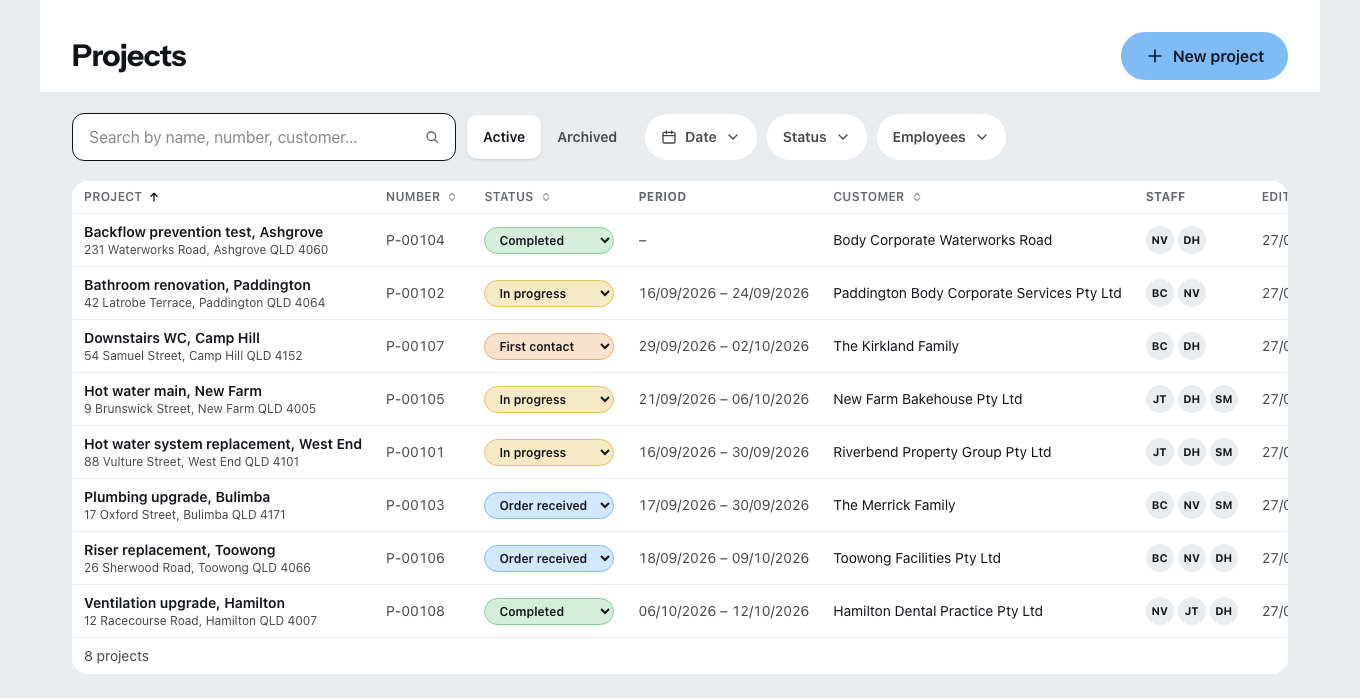
How you create one
- Click New project.
- Enter the Name. Without it nothing can be saved.
- Number is optional — leave it empty and Zirko assigns the next free one.
- Choose the Status: First contact, Quote, Ordered, In progress, Completed, Archived. You create your own under Manage statuses.
- Search for the Customer. This too is optional — a project may start without a customer and get one later.
- Use the customer’s address or enter the site address.
- On-site contact — whoever unlocks the door. Name, telephone, email.
- Select Employees.
- Save.
Point 8 is the most important one. Whoever is selected here sees the project on their smartphone. Whoever is not selected does not see it — and will not find the site they were sent to either.
The on-site contact is not a nicety: the team sees the name, telephone number and email in the mobile application and can call straight from there.
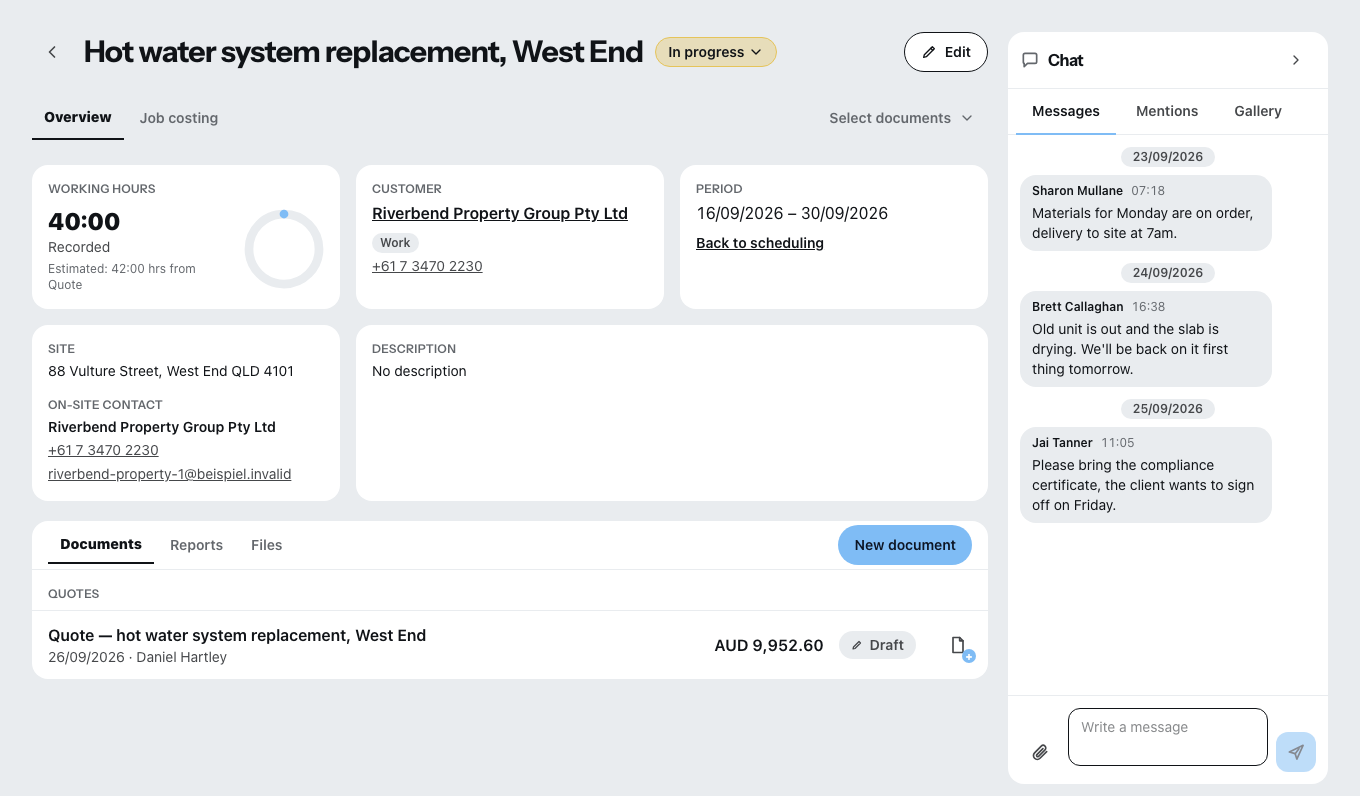
What is on the project page
Two main tabs: Overview and Job costing. Below the cards, three more: Documents, Reports, Files. On the right the Chat runs the full height of the page — it is not a tab, it is always there.
At the top are the cards for working hours (recorded against calculated), customer, period, site, on-site contact, description and phases, together with the buttons Change status, Edit and Record costs.
Job costing puts the calculation and reality side by side: total costs, cost types and the verdict “over the calculation” or “under the calculation”. It is part of the Team and Company packages; during the trial every business has it. Record costs has three tabs — Recorded times, Incoming invoices, Consumption.
Archive instead of delete
Finished projects belong in the Archived view. They disappear from the daily list and stay complete — with documents, times and reports. Restore brings them back.
What is not possible today
- Reports open in the view built for the site — they have no separate office view. A report cannot be sent from Zirko.
- Reports, photos and measurements are created on mobile only, on site.
- The lists under Documents, Reports and Files are capped — they show the newest, not all of them.
- Only images (PNG, JPG, WEBP) and PDFs go into Files. Anything deleted cannot be brought back.